Vibie Chrome extension
Let Vibie list, read and act in the Chrome tabs you already have open, with the logins you already have, only when you ask in a Vibie chat.
Install and connect
- Sign in to Vibie at vibie.ai with your Google account.
- Add the Vibie extension to Chrome. It has no window of its own: you use it from your Vibie chat.
- Keep a Vibie tab open in the same Chrome.
- Open Settings → Chrome in Vibie to check that it says Connected.
- Ask about one of your open tabs in a chat.
What you can ask
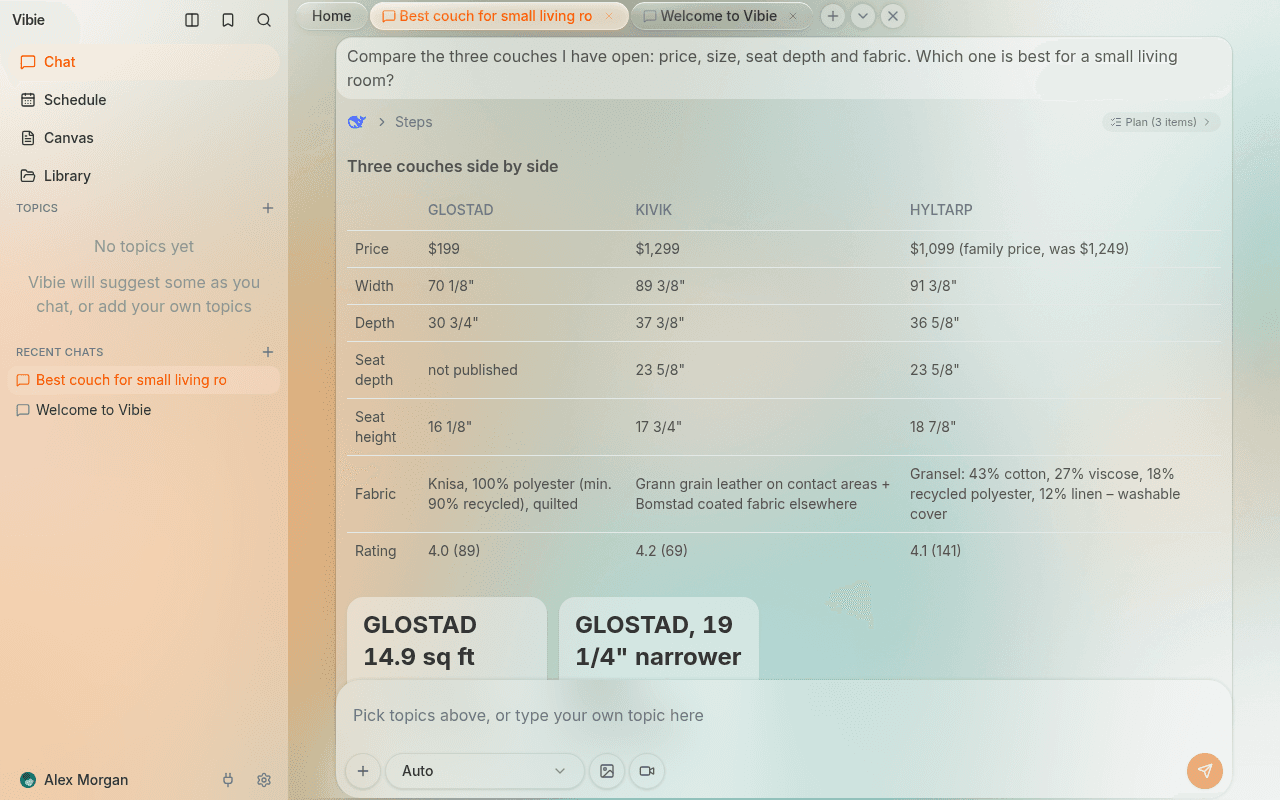
- “Compare the three couches I have open.” Vibie reads the three tabs and answers with a comparison.
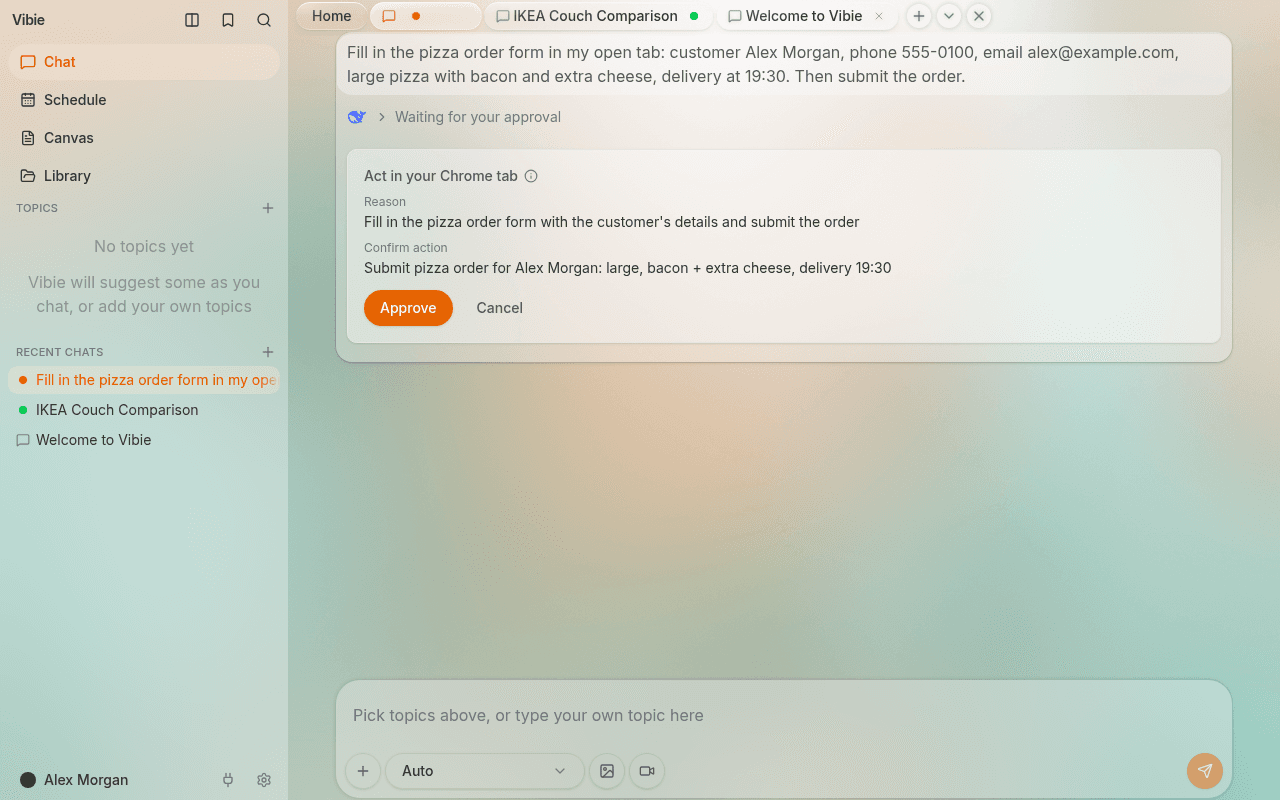
- “Fill this registration form from my brief, stop before submitting.” Vibie types into the form and stops for you.
- “Which of my open tabs mention the invoice?” Vibie lists your tabs and reads the ones that match.
How you stay in control
- The extension does nothing on its own. It acts only on a request you typed in your own Vibie chat.
- Before a step that sends, submits, posts, pays or deletes, Vibie shows you the exact text and the website in the chat. The step runs only after you approve it.
- For a website you use often you can choose Always allow, so its send and submit steps stop asking. Remove it any time under Settings → Chrome. Paying and deleting always ask.
- Password, card and one-time-code fields are never filled. You fill them yourself.
- Click the Vibie icon in Chrome’s toolbar to stop the current task at once.
When something does not work
Vibie says Chrome is not connected
Check that the extension is installed in the same Chrome profile you are using, and that a Vibie tab is open in that Chrome. Settings → Chrome in Vibie shows Connected with your browser and the extension version when it works. Then ask again in the chat.
Chrome asks whether to allow a Vibie account
This window appears the first time a different Vibie account uses the extension in this Chrome. Choose Allow if it is your account, then ask Vibie again.
Vibie cannot read a page
Chrome's own pages, the Chrome Web Store and Vibie's own pages cannot be read or clicked. Vibie can still switch to them or close them. For other pages, reload the tab and ask again.
Vibie stopped at a password or card field
That is on purpose: Vibie never fills password, card or one-time-code fields. Fill them yourself and ask Vibie to continue.
I use several Chrome profiles
The extension works only in the Chrome profile where it is installed. Add it to each profile you want Vibie to work in.
How do I remove the extension?
Right-click the Vibie icon in Chrome's toolbar and choose Remove from Chrome. This deletes the link to your Vibie account stored in Chrome. Websites you always allowed stay listed under Settings → Chrome in Vibie until you remove them there.
Chrome extension and websites
Let Vibie read and act in your Chrome tabs and on the websites you choose.
- Chrome Tab Controllet Vibie read and act in your open Chrome tabs
- Chrome Tab Consentcheck if Vibie can reach your open tabs
- Site Approvalyou decide which sites Vibie opens
- Site Loginslog in once and let Vibie read sites as you
- Page Readerlet Vibie read any web page for you
- Browser Taskslet Vibie fill web forms for you
- Page Watching
Contact support
Write to us and a person on the Vibie team reads it and replies by email.
support@vibie.aiTo get an answer quickly, say what you did, what you expected and what happened instead, and add a screenshot if you have one.
From inside Vibie
Click your name at the bottom left and choose Send feedback, or press the thumbs-down under an answer that went wrong. You can also ask Vibie in any chat to send a message to the Vibie team.
Your account and data
Download a copy of your data or delete your account in Settings → Account. Requests by email are answered within 30 days. Read the privacy policy.